Every team gets a free site on make.wordpress.org. Currently, we use the P2 theme on all team sites. If you’re starting a new team or (more likely) splitting off from another team, contact the team in #meta about your needs.
Setup
Only WordPress.org super admins can perform the initial setup.
Because WordPress is wonderful, all you’ll need to do is create a new site in WordPress and “flip the switch.” Ensure that the “P2 for make.wordpress.org” theme is enabled and the only one installed on the site.
Migrating Content
Don’t.
But if you have to, contact @coffee2code or @Otto42 and have them do it for you. There are interesting weird situations on WordPress.org with migrating content from one make site to another. The regular Import tool has been disabled for this reason.
Handbooks
Hopefully, the new team will want a handbook! Setting up the handbook only requires enabling the handbook plugin and following the process outlined in this documentation.
Blue Box
Most teams have a “blue box” on their homepage with an introduction on how to get involved and other related information (notably, this team does not).
To add a “blue box” to a team’s homepage, do the follow:
- Create a new page called “Welcome” with the slug of “welcome.”
- Copy the HTML from another team’s welcome page and paste it into the new page.
- Update the text.
- The end.
Enabling Subscribing
Most teams will want to enable subscribe by email. In order to do this you will need an admin to connect their Jetpack account by clicking a link at the bottom of the following page.
Once this is done you need to go to: Widgets and add Subscribe. You can simply use another team’s implementation as an example, as it’s recommended to have a title and description.
Icons, Home, etc
Teams should be listed on the make.wordpress.org homepage. The team lead should provide the following:
- Dashicon to represent the team
- Brief summary of the team (see the homepage for examples)
- Weekly chat time and day
One you’ve received that information, you’ll need to update WordPress.org in a couple of places.
- The icon in the <h2> header of each make site is updated in wp4.css.
- Be sure to clear the cache in header.php.
- The icon on the make homepage needs to be updated within the make theme.
- Be sure to clear the cache in functions.php.
- After step 2 has been completed, add a new “site” to WordPress.org and fill in the information from above.
Profile Badges
Teams can have a badge listed on members profiles, for this we need to know a few pieces of information:
- What badges the team needs, commonly this will be “Make Team” and “Make Team Contributors”, but this can be customized (for example, ‘Plugin Authors’) or skip the Contributors badge entirely.
- The color & icon for the badges. See Profile Badges for existing teams.
- Ideally a dashicon should be used here, but SVG can also be used.
- This should match the icon used for the Make homepage.
- The list of initial members of each badge, and who needs to be able to assign them.
Badges are implemented as BuddyPress groups, to create the new badges you’ll need to..
- Create the BuddyPress groups through profiles.wordpress.org/wp-admin, keep the groups set as private.
- Setup the new badges in
wporg_profiles_get_association_classes()inthemes/profiles.wordpress.org/functions.php - Setup the new badges
themes/profiles.wordpress.org/style.css, search for the existing.badgeand copy an existing teams styles for the new style.- Note: Pay attention to the team styles, the main team should have a solid background, and the contributors group should have a white background
Please note: The code behind profiles.wordpress.org is currently not open-sourced, this step needs to be done by a member of the WordPress.org meta team.
GitHub Teams
If the Make team has a GitHub team, after the site is created you should also enable the GitHub Invite Member tool for their site. Visit Tools -> Invite GitHub Member as a super-admin and enable the GitHub team for their site.
Note: The list of teams is cached, if you only just created the team on GitHub, you may need to wait an hour.
Meetings
Team meetings can be added to the Meeting Calendar by adding a new Meeting post on the main Make site. Users will need at least an Author role to access it.
That’s it! Happy contributing!
Formatting Timestamps
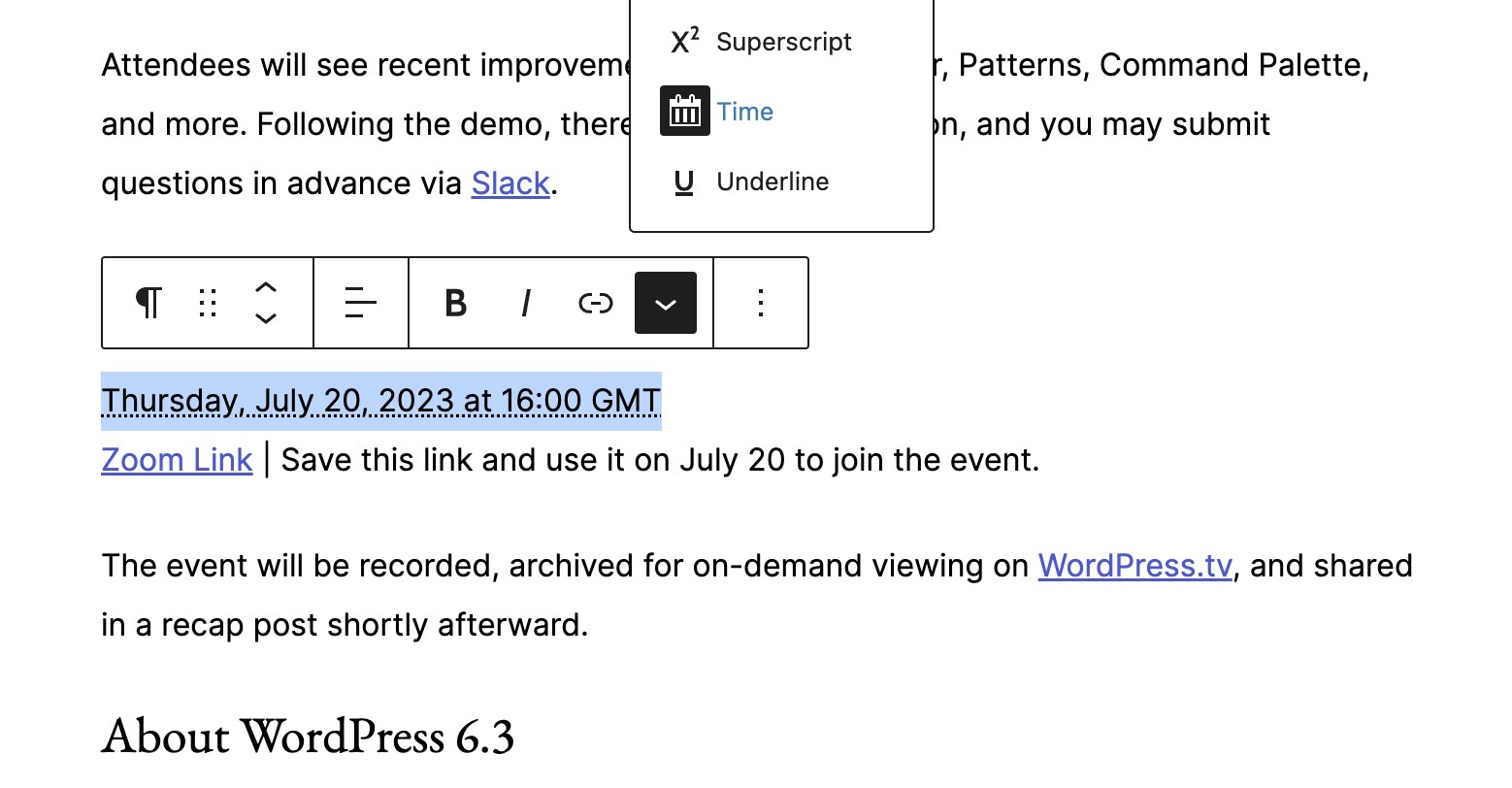
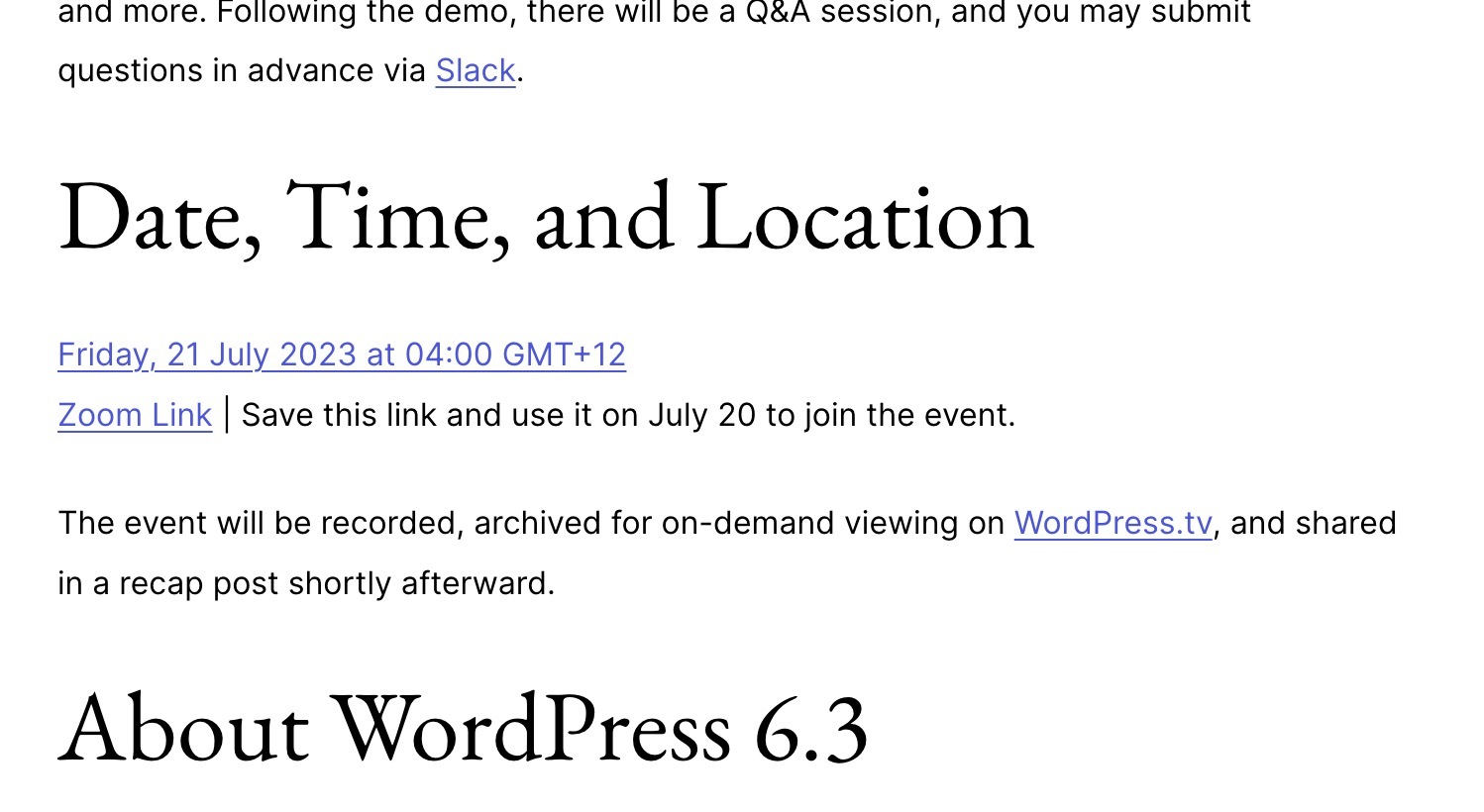
If you create content on a WordPress.org blog, you can leverage a time format to improve how time zones are displayed when sharing dates and times.
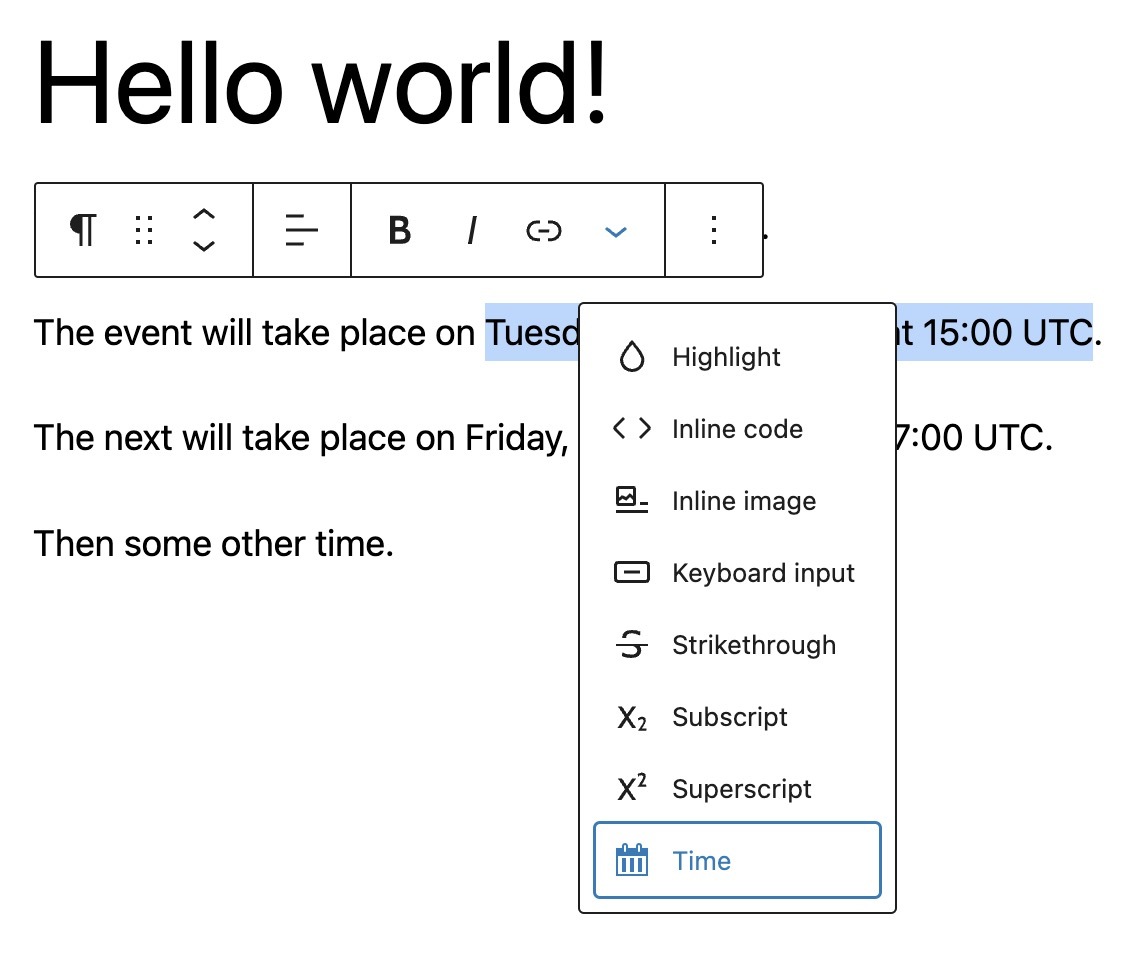
When typing your date, use the following format: Thursday, July 20, 2023 at 16:00 UTC
Then, highlight the timestamp, right-click, and select the “Time” menu item from the Gutenberg rich text toolbar.
When your content is published, viewers will see the date displayed in the local timezone of their system.