If there’s a question you’d like to see answered, or a topic you’d like to see discussed, please share it in the comments or email [email protected] with the subject line “Tuesday Trainings”. Now onto this week’s topic!
What is a profile badge?
If you look at any contributor’s profile page on WordPress.org, you’ll notice that they have colorful badges on their profile, as seen in the image below. These badges represent their contributions to WordPress.
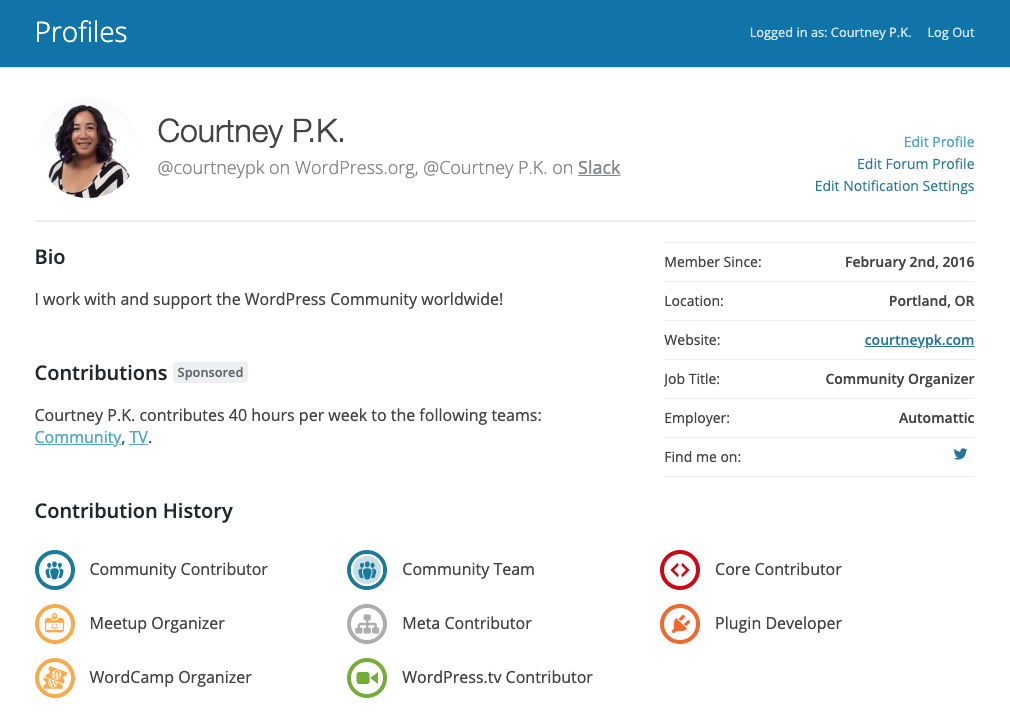
You can view your own profile by following this link (requires login to WordPress.org)!
What do the different Community Team badges mean?
I’m glad you asked. 🙂 The Community Team has many ways to contribute, and there are badges to indicate those contributions.

The Community Team badge will be manually assigned to all Community Deputies who have been active for at least 6 months (active deputies are listed on this page). You can find out more about the Deputy program (and how to get involved) in the Community Deputy handbook.

The Community Contributor badge will be manually assigned to all WordCamp Mentors, as well as those who provide valuable contributions to the Community Team. Mentors are all listed as “Mentor” on the Community Deputies list. In the future, mentors will be auto-assigned this badge when they begin mentoring their first WordCamp (removing the manual administration side of things). You can find out more about the WordCamp Mentorship program in this previous Tuesday Trainings post, or in the Deputy handbook.

The Meetup Organizer badge is auto-assigned to all members of Meetup organizing teams for meetup groups in the official chapter program. The list of WordPress.org usernames for each meetup group is manually updated by Community Deputies.

The WordCamp Organizer badge is auto-assigned to all members of WordCamp organizing teams, provided their WordPress.org username is added to their ‘Organizer’ post on any WordCamp.org website.

The WordCamp Speaker badge is auto-assigned to all WordCamp speakers, provided their WordPress.org username is added to their ‘Speaker’ post on any WordCamp.org website.
What about badges for other teams?
All the other contributor teams have badges specific to them, and there are two types of badges: Contributor and Team. What’s the difference between the two?
Contributor badges are assigned to anyone who has contributed to a particular team. Team badges are assigned to contributors that are currently active on that team. You can view the descriptions and criteria for each badge over on Meta.
I think my profile is missing a Community badge, what do I do?
Community Team or Community Contributor badges are manually assigned to contributors and usually need to be requested, as the system doesn’t allow us to add the badge to your profile until a request is submitted. To make a request, please go to the Community Team or Community Contributor pages and request membership for the group. Community Deputies will then review/approve the request. Since this process is manual, the change may take a short time to complete.
WordCamp Organizer, WordCamp Speaker, and Meetup Organizer badges are automatically assigned based on contributor status. As long as you have your WordPress.org username in your WordCamp Organizer or Speaker profile, or the Meetup Tracker, the badge should appear automatically.
Note that there is a known bug that has caused WordCamp Organizer and Speaker badges to mysteriously disappear from profiles (this bug can be tracked on Meta). If this has happened to you, try the following if you have the ability to edit the Speaker (or Organizer) profile on the WordCamp’s site:
- Remove your WordPress.org username from the Speaker (or Organizer) profile, then save.
- Add your username back in and save again.
- Refresh your profile page—your badge should re-appear like magic!
If you do not have the ability to try the above steps for WordCamp Speaker and Organizer badges, or they did not work, please contact the Community Team so a deputy can assist you further. Please be sure to include your WordPress.org username, as well as the WordCamp city and year that you organized for.
If you are listed as Meetup organizer on your chapter meetup group, and your profile page does not have the Meetup Organizer badge, contact the Community Team. Please include the URL of your meetup group and your WordPress.org username.
For both of these cases, Community Team deputies can be reached at [email protected], and please include “Profile badges” in the subject line.
Display your profile badges with pride, and thank you for all your great contributions!