This guide helps moderators run Test Team Chat meetings. Use the structure and example phrases below as a reference.
Pre-Meeting Preparation
Before the meeting:
1. Review the meeting agenda published beforehand
2. Prepare any links or resources mentioned in the agenda
3. Have the Test Team Handbook open: https://github.com/WordPress/test-handbook
4. Note the scheduled start and end time
5. Be ready to take notes or delegate note-taking
Meeting Structure & Script
1. Opening / Welcome (Start Time)
Announce meeting start:
/here Hey everyone! Please join us in #core-test for this week’s Test Team chat.
Or:
/here We are starting now today’s
<test-chat>
/here notifies only active/online members in the channel.
Welcome message:
Hello and welcome to this bi-weekly test team chat meeting!
2. Attendance Check
Request attendance:
Who is joining us today? Please reply in the thread:
1. Please say hello and note your WordPress.org profile username, as we will use this to record attendees in the notes.
2. Feel welcome to introduce yourself briefly and share a flag or your favorite emoji!
Note about async participation:
If you’re joining this chat async, please add your details to the thread later and include (async) after your name. This helps us review meeting times and encourage participation across all time zones.
3. Share Agenda
Link to agenda:
Today’s chat agenda can be found here. Please take a look.
Example links:
- https://make.wordpress.org/test/2026/01/21/team-chat-agenda-22nd-january-2026/
- https://make.wordpress.org/test/2026/01/14/team-chat-agenda-14th-january-2026/
4. Meeting Notes Announcement
Declare meeting notes section:
Meeting Notes
Identify facilitator:
Today’s session facilitator and note-taker is @[YOUR_USERNAME]
Or, if the roles are handled by different people:
Today’s session facilitator is @[FACILITATOR_USERNAME] and the note-taker is @[NOTE_TAKER_USERNAME]
Upcoming 4-Week Schedule (Optional):
📅 Upcoming 4-Week Schedule
- 12 February 2026 – Facilitator: @username1 | Note-taker: @username2
- 26 February 2026 – Facilitator: @username3 | Note-taker: @username4
- 12 March 2026 – Facilitator: (Open) | Note-taker: (Open)
- 26 March 2026 – Facilitator: (Open) | Note-taker: (Open)
🙌 If you’d like to volunteer for any open slot, please reply in the thread.
5. Test Team Discussions
Transition to main agenda:
Now let’s move on to agenda item: Test Team Discussions
For each agenda item:
Introduce the item:
- [AGENDA_ITEM_TITLE]
Provide context (if needed):
[Brief explanation or context about the topic]
Facilitate discussion:
- Let participants share their thoughts
- Ask clarifying questions when needed
- Summarize key points
- Acknowledge contributions
Transition between items:
Then I think we can move to the next item in the agenda:
– [NEXT_AGENDA_ITEM]
When discussion needs continuation:
Let’s continue the conversation in the GitHub Issue and bring it back to another chat once there’s more consensus on it.
When wrapping up a discussion:
We can discuss this on GitHub and make the required changes accordingly.
6. Open Floor
Time check (10 minutes before end):
10min to end the meeting
Transition to open floor:
Let’s move to the Open Floor
Invite contributions:
Does anyone have anything they’d like to share or discuss?
If no responses:
- Wait a reasonable amount of time (1-2 minutes)
- If still no responses, proceed to announcements
7. Announcements
Transition to announcements:
Before we finish the meeting here you have a few links of relevant things that are happening in the WordPress Ecosystem and in the Test Team
Or:
Let’s now move on to the next agenda item: WordPress Ecosystem Announcements
A. WordPress Ecosystem Announcements
Introduce section:
WordPress Ecosystem Announcements
List announcements with links:
Example announcements to include:
- Gutenberg releases
- WordPress version releases and schedules
- PHP version support changes
- Major release schedules
- Developer news and resources
- Core team calls for volunteers
B. Test Team Announcements
Introduce section:
Test Team Announcements
Or:
next move to Test Team Announcements:
List Test Team specific items:
- Test Team Program Information
- Week in Test Post: Brief description
- Test Team Update: Metrics for overall team progress
C. Call for Testing
Introduce section:
Call for Testing
Or:
next Call for Testing
List testing needs:
- Help Test WordPress X.X
- We have Patch Testing Issues that need testing
Standard links:
- Core Needs Testing: https://core.trac.wordpress.org/tickets/needs-testing (this report is slated to be deprecated and removed)
- Gutenberg Needs Testing: https://github.com/WordPress/gutenberg/issues?q=state%3Aopen%20label%3A%22Needs%20Testing%22
Check for reactions:
Any comment about any of these resources?
8. Closing
When ready to close:
As there are no more comments we can wrap up the meeting.
Final closing message:
So this bring us to the end of our meeting
</test-chat>thank you all for coming.
Alternative:
And this bring us to the end of our meeting. Thank you all for coming.
Moderator Tips
During Discussions
- Acknowledge all participants – Thank people for their contributions and use their @username when responding.
- Ask clarifying questions – “Just to confirm, [restate]?” or “Is there any more context about this work?” or “Could you elaborate on [topic]?”
-
Summarize and capture action items – “Noted. I’ll [action item]” or “Sounds good, we can [next step]”
-
Keep discussions on track – Gently redirect off-topic discussions. Suggest moving lengthy debates to GitHub. Be mindful of time.
-
Facilitate, don’t dominate – Allow space for others to speak. Encourage quieter participants. Balance the conversation.
GitHub Integration
When discussions need follow-up:
- Suggest creating GitHub issues
- Reference the test-handbook repo
- Encourage PRs for concrete proposals
- Link to existing issues when relevant
Common references:
- Test Handbook: https://github.com/WordPress/test-handbook
- Test Handbook Issues: https://github.com/WordPress/test-handbook/issues
Time Management
- Start on time (scheduled time)
- Typical meeting length: 55-60 minutes
- 10-minute warning: Announce time before Open Floor
- End on time: Respect participants’ schedules
Note-Taking
As facilitator, you should:
- Capture key discussion points
- Note action items and owners
- Record decisions made
- List attendees (from thread)
- Prepare meeting summary for publication
Common Situations
If discussion gets detailed/technical:
- Suggest moving detailed discussions to GitHub issues
- Remind participants that chat is for brainstorming, GitHub is for finalizing details
- Offer to create a GitHub issue to track the conversation
If someone offers help:
- Acknowledge their willingness to contribute
- Note their offer in the meeting notes
- Provide relevant links or resources they might need
If clarification is needed:
- Ask clarifying questions
- Restate the point to confirm understanding
- Summarize the discussion so far
If moving to next topic:
- Announce the transition
- Briefly reference the next agenda item
- Allow a moment for any final comments
Post-Meeting Tasks
After the meeting:
1. Compile meeting notes from the discussion
2. Create GitHub issues as mentioned during meeting
3. Update calendar if schedule changes were discussed
4. Publish summary to make.wordpress.org/test if required
5. Follow up on action items assigned during meeting
Quick Reference – Meeting Flow
- Opening & Welcome (2-3 min)
- Attendance Check (2 min)
- Share Agenda (1 min)
- Meeting Notes Declaration (1 min)
- Test Team Discussions (30-40 min)
- Multiple agenda items
- Facilitate discussion for each
- Transition between items
- Open Floor (5-10 min)
- Announcements (5-8 min)
- WordPress Ecosystem
- Test Team
- Call for Testing
- Closing (1-2 min)
Total Duration: ~55-60 minutes
Automating This Guide with a Session Plugin
Currently, running a Test Chat means manually copying and pasting each message from this page into Slack. Before you do that, you can use the TestFlow plugin to conduct the whole session instead: it keeps the script, session variables, and timer in one screen and copies each message to your clipboard for you.
What it does
The plugin turns the script above into an interactive session screen: a running timer, one-click Copy buttons for every message in this guide, and session variables (agenda URL, facilitator, note-taker) that get merged into the messages automatically.
Where to get it
Try it instantly via WordPress Playground — no installation required. You can also download it from GitHub and install it as a regular plugin. See the proposal and discussion for background and status.
Screenshot
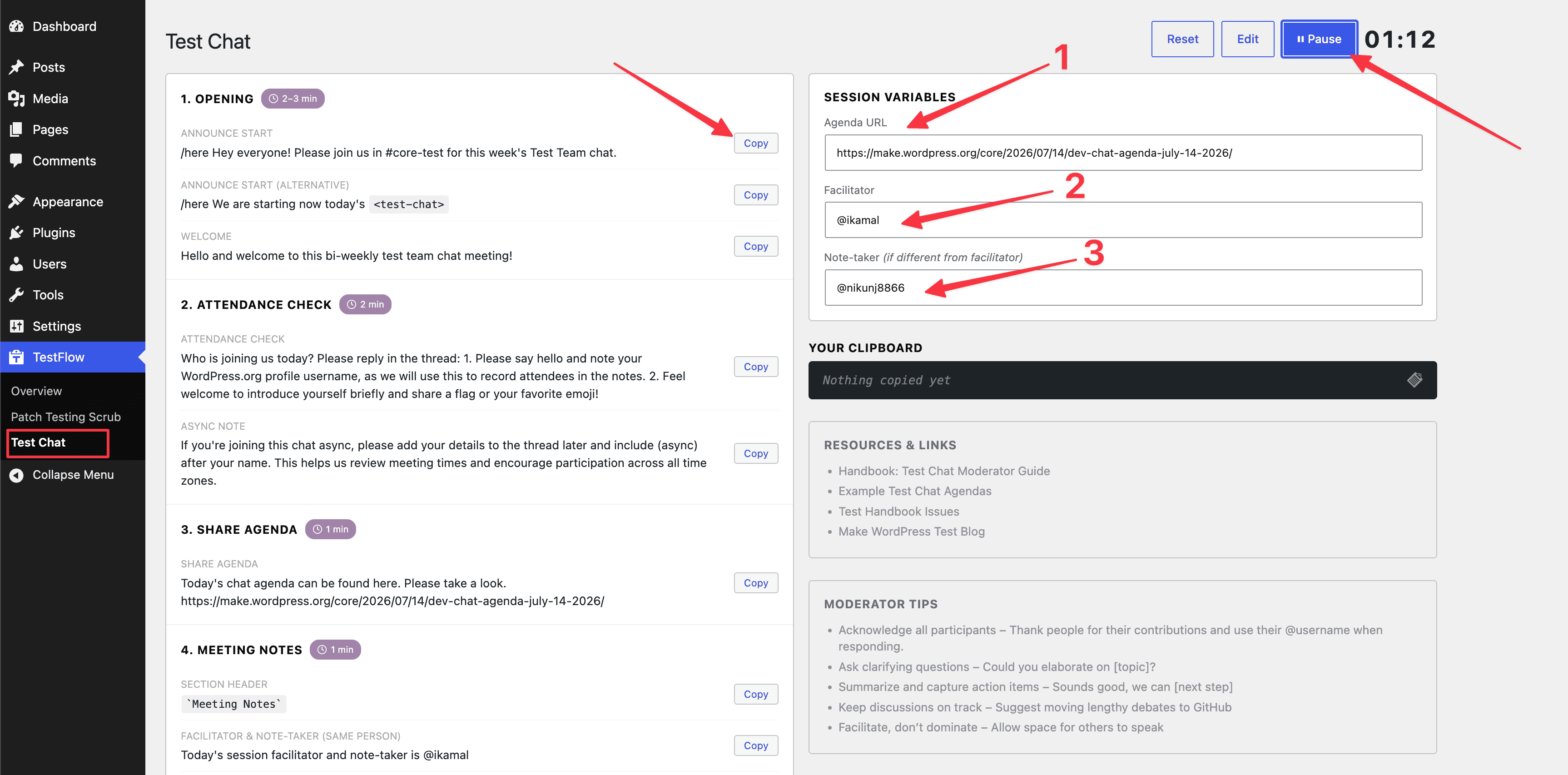
How to use it
- Activate the plugin, then go to TestFlow > Test Chat in the admin sidebar.
- Before the session, fill in the fields listed below, so they’re merged into the messages as you copy them.
- Click ▶ Start to begin the session timer (it turns red past 50:00).
- Work through 1. Opening: click Copy next to each message (Announce Start, or the alternative wording, then Welcome) and paste it into Slack in order.
- In 2. Attendance Check, copy the attendance request, and the async note if needed for participants joining later.
- In 3. Share Agenda, copy the message — it automatically includes the Agenda URL you entered in Session Variables.
- In 4. Meeting Notes, copy the section header, then the facilitator/note-taker message that matches your session (same person, or different people).
- Continue copying each message for the remaining agenda items, Open Floor, Announcements, and Closing sections as you move through the meeting.
- Use Edit if you need to customize any message template, and Reset to clear session variables and the timer between sessions.
Fields you’ll need to fill in
- Agenda URL: the link to today’s published meeting agenda, e.g. `https://make.wordpress.org/test/…`. Gets inserted into the Share Agenda message.
- Facilitator: the
@usernameof today’s session facilitator. Gets inserted into the Meeting Notes messages. - Note-taker (if different from facilitator): the
@usernameof the note-taker, only needed when it’s not the same person as the facilitator.
Tips
- Fill in Session Variables before you click Start, so the Share Agenda and Meeting Notes messages are ready to copy without edits.
- The messages in the plugin mirror the script in this guide, so you can still improvise or paste your own text when needed.
- Reset: clears session variables and the timer for a fresh session.
- Edit: opens the message templates so you can tweak wording per step.
- Start: begins the timer, which turns red past 50:00 as a wrap-up cue.
- Session script (1. Opening, 2. Attendance Check, 3. Share Agenda, 4. Meeting Notes, and onward): each step has labeled messages with a Copy button that puts the ready-to-paste text on your clipboard.
- Your Clipboard: shows the exact text last copied, letting you double-check the message before pasting it into Slack.
- Resources & Links: quick jump-off links to this handbook guide, example agendas, Test Handbook issues, and the Make WordPress Test blog.
- Moderator Tips: a condensed reminder of the moderator tips from this guide, visible throughout the session.
Resources & Links
Essential Pages
- Make Test: https://make.wordpress.org/test/
- Test Handbook: https://github.com/WordPress/test-handbook
- Test Handbook Issues: https://github.com/WordPress/test-handbook/issues
- Core Reports: https://make.wordpress.org/core/reports/
Regular Reports
- Month in Test: Published monthly at make.wordpress.org/test
- Test Team Update: Weekly metrics report
- Gutenberg Releases: Bi-weekly release announcements
Example Full Opening Sequence
[14:02] Moderator: /here Hey everyone! Please join us in #core-test for this week’s Test Team chat.
[14:02] Moderator: Hello and welcome to this bi-weekly test team chat meeting!
[14:02] Moderator: Who is joining us today? Please reply in the thread:
1. Please say hello and note your WordPress.org profile username, as we will use this to record attendees in the notes.
2. Feel welcome to introduce yourself briefly and share a flag or your favorite emoji![14:05] Moderator: If you’re joining this chat async, please add your details to the thread later and include (async) after your name. This helps us review meeting times and encourage participation across all time zones.
[14:06] Moderator: Today’s chat agenda can be found here. Please take a look.
[14:07] Moderator: Meeting Notes
[14:08] Moderator: Today’s session facilitator and note-taker is @YourUsername
[14:10] Moderator: Now let’s move on to agenda item: Test Team Discussions
[14:10] Moderator: – [First Agenda Item]