This guide helps moderators run Patch Testing Scrub sessions. Use the structure and example phrases below as a reference to assign tickets to everyone in attendance.
Pre-Session Preparation
Before the session:
1. Review and have Trac ticket queue open and ready (Patch Testing Tickets). Also, prepare a shortlist of tickets to assign
2. Check for any recent WordPress releases, beta releases or release candidates to announce
3. Note the scheduled start time and be prepared to monitor the thread throughout
Session Structure & Script
1. Opening / Welcome (Start Time)
Announce meeting start:
/here We are starting today’s
<patch-testing-scrub>
/here notifies only active/online members in the channel.
Welcome message
Hello everyone 👋
Share any relevant announcements (e.g. a new WordPress version, a beta release, a release candidate)
Before we start, WordPress 7.0 RC 2 is now available for testing. Feel free to try it out and share your feedback.
Invite Participant
If you’re around, we’d love your help with testing and sharing reports.
Call for testers
If you’re ready to start patch testing, please reply in this thread so I can assign you a ticket. 🧵
2. Assigning Tickets
When a participant replies and is ready to test
Thank you @[YOUR_USERNAME], for joining us today. You can start working on #[TICKET_NUMBER]
When assigning a follow-up ticket to someone already testing
@[USERNAME] Thank you for adding a report. You could give this a try #[TICKET_NUMBER]
Tips for choosing tickets
- Prioritize tickets that have a numbered milestone (e.g. Milestone: 7.1) then Future release tickets.
- Match ticket complexity to the participant’s experience level where possible.
- Avoid assigning the same ticket to two people simultaneously unless it needs multiple test environments.
3. Monitoring the Session
Acknowledge test reports as they come in
Great work @[USERNAME], thanks for the report!
If a participant finishes early and wants another ticket
Thanks @[USERNAME]! Here’s another one you can try: #[TICKET_NUMBER]
4. Closing
When ready to wrap up
Well, this marks the end of today’s
</patch-testing-session>
Reassure participants they can continue
Feel free to ping me if you need to comment on anything, and also if you have not finished with your patch testing, you can continue for as long as you want, and ping me if you have any trouble finishing.
Thank all participants by their Slack username
Thanks @[USERNAME1], @[USERNAME2], and @[USERNAME3] for coming today. 🎉
Quick Reference Meeting Flow
- Opening & Welcome (2-3 min)
- Assign Tickets (40-50 min)
- Monitoring Session(ongoing throughout the session)
- Closing (2-3 min)
Total Duration: ~55-60 minutes
Moderator Tips
Assigning & Tracking Tickets
- Keep a running list of who has been assigned which ticket.
- Check reports promptly: when someone posts a test report, acknowledge it and offer a new ticket quickly to keep momentum going.
- Have a backlog ready: prepare more tickets than you expect to need so you’re never scrambling for assignments.
- Balance the queue: try to have a mix of easy and complex tickets so participants of all experience levels can contribute.
Encouraging Participation
- Welcome newcomers warmly: first-time testers may be nervous; a friendly acknowledgement goes a long way.
- Use @usernames: always mention participants by username so they feel seen and so the thread is easy to follow.
Handling Common Situations
If a participant is stuck on a ticket
- Offer to help them tackle the ticket if you have the knowledge and expertise to test the ticket.
- If you are unable, you can offer to swap them to a different ticket.
If a ticket has already been tested by someone else
- Check whether a second test report would still be valuable.
- If not, assign a different ticket.
Time Management
- Start on time (scheduled time)
- Typical session length: 55-60 minutes
- Monitor the thread: keep an eye on replies throughout
- Close gracefully: give a clear end message so participants know when the hosted portion is done, even if testing continues
Facilitating with the TestFlow Plugin
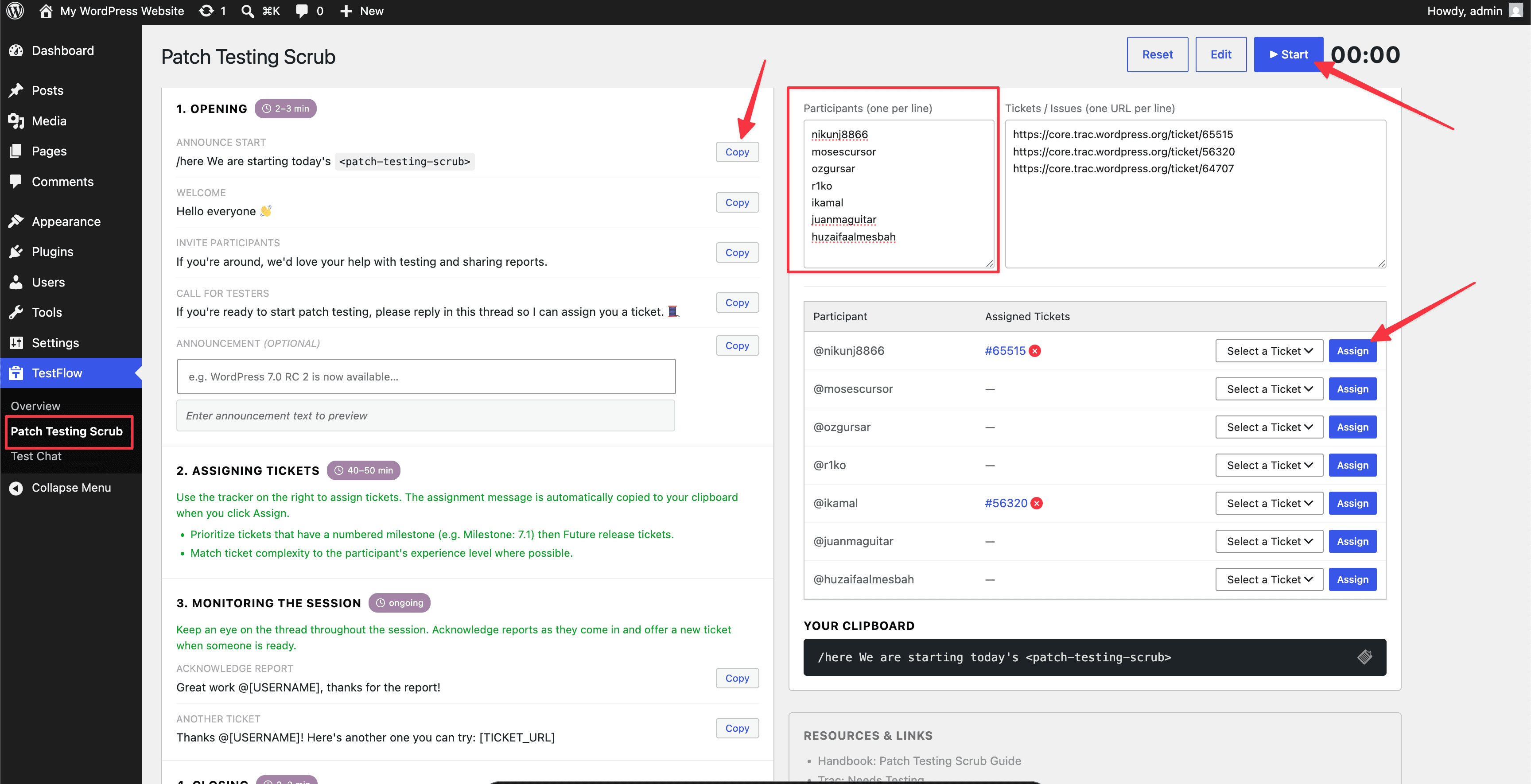
Instead of running the session from this guide manually, you can use the TestFlow plugin to conduct the entire scrub in a guided and assisted way. It displays the session’s phases with approximate durations, runs a timer, helps you copy each message to the clipboard, and provides a ticket tracker so you can easily assign tickets to the participants.
What it does
TestFlow turns the script and tips above into an interactive session screen: a running timer, one-click Copy buttons for every message in this guide, and a live tracker that assigns tickets to participants and copies the assignment message automatically.
Where to get it
Try it instantly via WordPress Playground — no installation required. You can also download it from WordPress Plugin Directory and install it as a regular plugin. See the proposal and discussion for background and status.
Screenshot
How to use it
- Activate the plugin, then go to TestFlow > Patch Testing Scrub in the admin sidebar.
- Before the session, fill in the fields listed below, so the tracker is ready as soon as people reply.
- Click ▶ Start to begin the session timer (it turns red past 50:00).
- Work through 1. Opening: click Copy next to each message (Announce Start, Welcome, Invite Participants, Call for Testers) and paste it into Slack in order. Use the optional Announcement field to add a custom note, e.g. a new release candidate.
- In 2. Assigning Tickets, assign a participant a ticket from the tracker — the assignment message is copied to your clipboard automatically, ready to paste.
- In 3. Monitoring the Session, use Copy on the “Acknowledge Report” and “Another Ticket” messages as participants post reports and need follow-up tickets. The Participant / Assigned Tickets table and Your Clipboard panel let you confirm who has what before you paste.
- Use Edit if you need to customize any message template, and Reset to clear participants, tickets, and the timer between sessions.
Fields you’ll need to fill in
- Participants (one per line): the Slack/WordPress.org usernames of everyone you expect to join, e.g.
username1. You can keep adding names here as people show up mid-session. - Tickets / Issues (one URL per line): the Trac ticket or GitHub issue/PR URLs you plan to assign, e.g. `https://core.trac.wordpress.org/ticket/65403`. Prepare more than you think you’ll need so you’re never scrambling for the next assignment.
- Announcement (optional): free-text field on the Opening step for one-off news, e.g.
WordPress 7.0 RC 2 is now available...— it gets folded into the opening message preview and copy.
Tips
- Fill in Participants and Tickets / Issues before you click Start, so the tracker is ready as soon as people reply.
- The messages in TestFlow mirror the script in this guide, so you can still improvise or paste your own text when needed.
- Session data (participants, tickets, timer) persists in your browser, so an accidental refresh won’t lose your progress.
- Reset: clears participants, tickets, and the timer for a fresh session.
- Edit: opens the message templates so you can tweak wording per step.
- Start: begins the timer, which turns red past 50:00 as a wrap-up cue.
- Session script (1. Opening, 2. Assigning Tickets, 3. Monitoring the Session, 4. Closing): each step has labeled messages (e.g. Announce Start, Welcome) and a Copy button that puts the ready-to-paste text on your clipboard.
- Participants / Tickets lists: the two text areas where you seed attendee usernames and ticket/issue URLs before and during the session.
- Participant / Assigned Tickets table: fills in automatically as you assign tickets, so you always have an at-a-glance record of who’s working on what.
- Your Clipboard: shows the exact text last copied, letting you double-check the message before pasting it into Slack.
- Resources & Links: quick jump-off links to this handbook guide, Trac Needs Testing, and the Gutenberg Needs Testing/PRs queries, so you don’t have to leave the screen to find more tickets.
Resources & Links
Essential Pages
- Trac Patch Testing query: here
Example Full Opening Sequence
[18.00] Moderator: /here We are starting today’s
<patch-testing-scrub>[18:02] Moderator: Hey everyone 👋
[18:02] Moderator: Before we start, WordPress 7.0 RC 2 is now available for testing. Feel free to try it out and share your feedback.
[18:02] Moderator: If you’re around, we’d love your help with testing and sharing reports.
[18:02] Moderator: If you’re ready to start patch testing, please reply in this thread so I can assign you a ticket. 🧵
[18:05] Moderator: Thank you @participant1, for joining us today. You can start working on #65007
[18:08] Moderator: Thank you @participant2, for joining us today. You can start working on #65031
[18:22] Moderator: Thank you @participant3, for joining us today. You can get started on #64762
[18:35] Moderator: @participant3 Thank you for adding a report. You could give this a try #65005
[19:00] Moderator: Well, this marks the end of today’s
</patch-testing-session>[19:00] Moderator: Feel free to ping me if you need to comment on anything, and also if you have not finished with your patch testing, you can continue for as long as you want, and ping me if you have any trouble finishing.
[19:00] Moderator: Thanks @participant1, @participant3, and @participant2 for coming today.