The admin bar and global navigation menu will be updated shortly to simplify the navigation as discussed on this post and in these issues: #252 Simplifying the wp-admin bar, #251 Reconfigure the site navigation.
Admin Bar
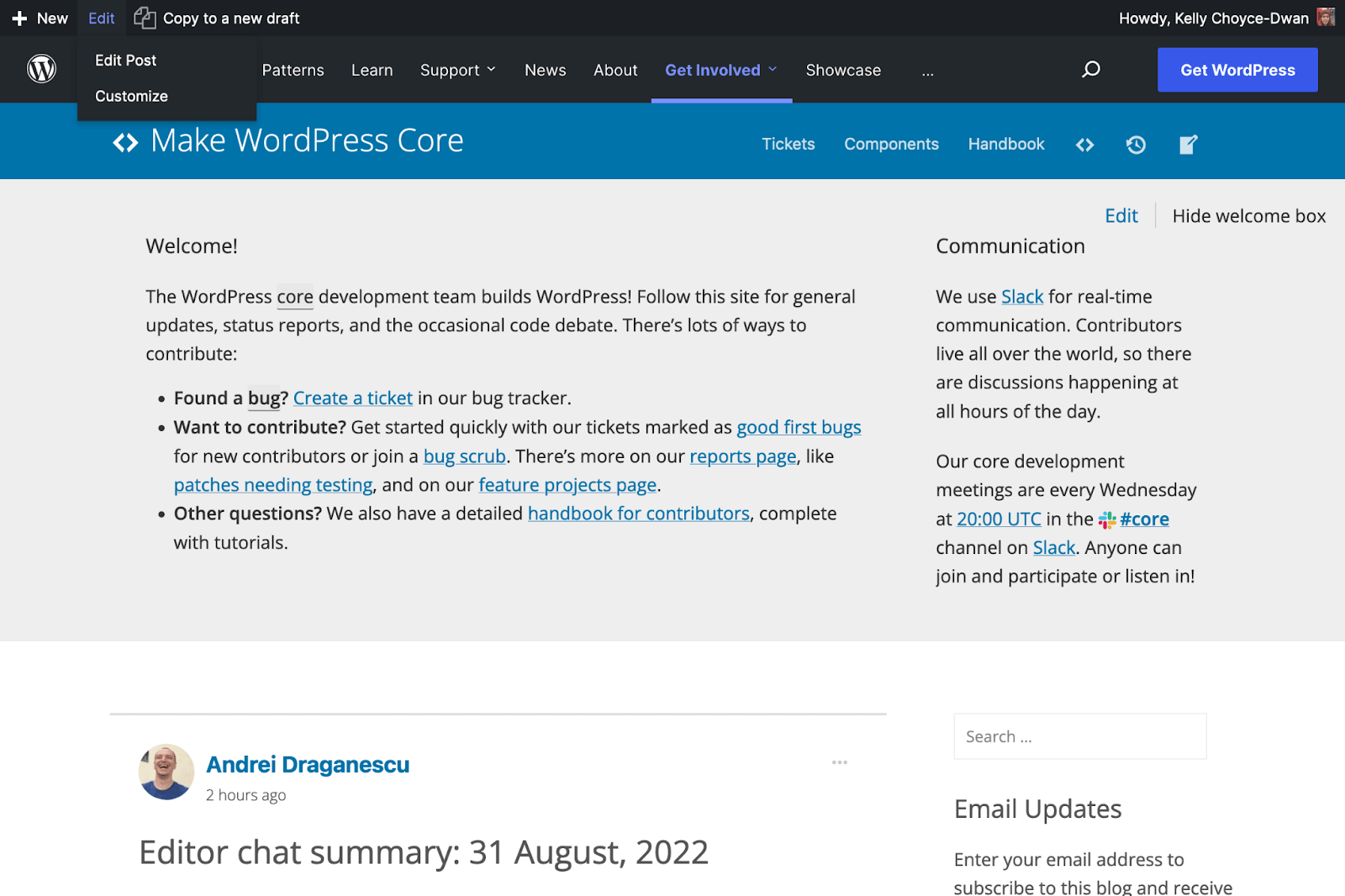
For the admin bar, if you’re logged out, you’ll see links to log in & register on every page. When you’re logged in, the admin bar has been simplified. The WordPress logo and About menu has been removed, along with the site name, comments, and some other top-level items. If you can write posts on a site, you’ll still see the “+ New” dropdown, and a new dropdown for “Edit”. If you’re a member on multiple sites, the My Sites dropdown has moved to the dropdown under your name.
These changes only apply to the front end of the site, the admin bar remains unchanged when you’re in the site admin.
Here’s an example on Make/Core. The “New” dropdown remains the same, and the Customize link is also the same. My name & avatar appear on the right.

When on a single post/page, that would usually have the top level “Edit Page” link, now it’s collapsed with Customize into “Edit.” If the site has any special plugins like “Copy to a new draft” or the locale switcher on Learn, that will stay in the admin bar.
If I need to see my sites list, it’s over in the right dropdown under my name, each of these links take you to that site’s dashboard.

Navigation Menu
The navigation menu menu will also be updated. This is an iteration in an ongoing process to better organize the content across the WordPress.org network and combines several ideas that were shared. This current iteration is based on the site structure as it is now and a few guidelines:
- This approach groups pages by visitor intent. Example: “I’m here to build out my site” or “I’m here to participate in the project”.
- To keep things slim, this approach directs visitors to top-level pages or areas where they can dig deeper rather than trying to deep-link visitors to everything. Example: There is a single link to “Learn” rather than “Tutorials” and/or “Lesson Plans”.
- Top-level items are organized based on the frequency of visits. “About” might be most used by new visitors, but “News” will be used repeatedly by visitors every day.
- Child items were generally sorted by broadest appeal (Ie. most visits) to least.
- Link names should be accessible and recognizable to everyone. “Contribute” may be readily recognizable to existing community members, but alternatives like “Community” are more easily understood by everyone.
- Parent items link to logical existing pages and also describe child items.
Note: Table header represents parent menu items with each column containing the respective children.
We will revisit and explore other proposed structural and design changes in future iterations. Any issues should be reported to the wporg-mu-plugins repo.