The previously monolithic “Post Comments” block has been updated to work in a more flexible and modular way by using child blocks. The new version is now called the “Comments Query Loop” block, and it comes with new blocks that can be used as child blocks within it. These new Comments blocks allow users to define and change the layout of the post comments directly from the Gutenberg editor.
Table of Contents
- Help test this feature
- How comments currently work in Full Site Editing
- What’s new?
- Testing Environment
- Testing Instructions
- What to Test
Help test this feature
This post is a call for users to test the new blocks that can be used to build a comments section in a page or post (following the block paradigm). The results of this testing will allow the contributors behind the development of these blocks to decide whether or not they are ready to be included in the next release of WordPress (v6.0)
Please report your findings either as issues on Github in the Gutenberg repository ,or in the comments below. If you have triage access, labelling any issue with “[Block] Comments Query Loop” would be very helpful. Alternatively, you can start the title of your issue with “Comments Blocks: ” to help those triaging the issues to label them appropriately.
How comments currently work in Full Site Editing
The “Post Comments” block is the block that currently manages a comments section on a post or page,
For example, the Twenty-Twenty-Two theme uses this block in its “Single Post” template

But with this “Post Comments” block no option exists to change the styles and the layout of the comments from within the Editor. This block uses the comments_template() function internally to generate the HTML for that section and the styles are defined via CSS files.
So, in summary, if you want to customize your comments section (change styles and layout) when using this “Post Comments” block you have to do a bit of coding
What’s new?
With the new Comments Query Loop block, you now have available a set of child blocks that enable you to customize the layout and styles of this section directly from within the Editor.
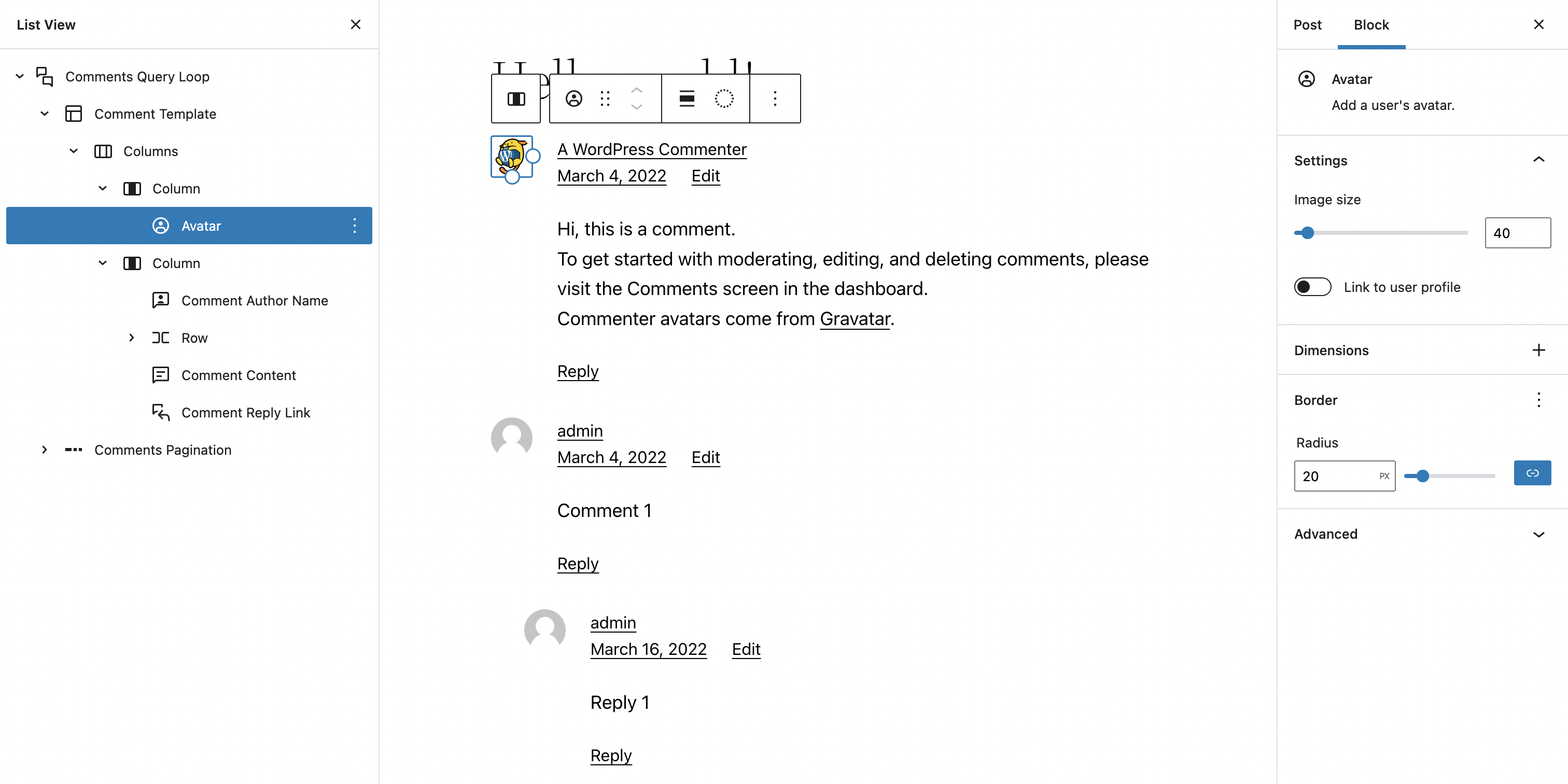
The new Comments Blocks that are available from Gutenberg v13.0 are:
- Comments Query Loop: An advanced block that displays post comments and allows for various layouts and configurations.
- Comment Template: Contains the block elements used to display a comment, such as the title, date, author, avatar and more.
- Avatar: Adds a user’s avatar.
- Comment Author Name: Displays the name of the author of the comment.
- Comment Date: Displays the date on which the comment was posted.
- Comment Content: Displays the contents of a comment.
- Comment Reply Link: Displays a link to reply to a comment.
- Comment Edit Link: Displays a link to edit the comment in the WordPress Dashboard. This link is only visible to users with the edit comment capability.
- Comments Pagination: Displays next/previous links to paginated comments where this has been enabled in the comment settings in the WordPress admin
- Previous Page: Displays the link to the previous page of comments.
- Page Numbers: Displays a list of page numbers for comments pagination.
- Next Page: Displays the link to the next page of comments.
- Comment Template: Contains the block elements used to display a comment, such as the title, date, author, avatar and more.
The addition of these blocks to Gutenberg is just the beginning. With these blocks, in the future you will be able to create and share your own patterns for a comments section.
Testing Environment
While there’s more information below to ensure you get everything set up properly, here are the key things to consider with regard to your testing environment:
- Use a test site. Do not use a production/live site. You can follow these instructions to set up a local install or use a tool like this to set up a development site.
- Use WordPress 5.9.3 or the latest version release page (downloadable here).
- Use the Twenty Twenty-Two theme. If you’d like to repeat the test or switch things up, you can always use a different block theme.
- Use Gutenberg 13.0 RC or the latest version (download the
gutenberg.zipavailable from the release page).
Testing Instructions
Set proper plugin and themes
- Have a test site using the latest version of WordPress (5.9.3 at time of writing). It’s important that this is not a production/live site.
- Install and activate the Twenty Twenty-Two theme by going to Appearances > Themes. If you choose to use a different block theme, install and activate by going to Appearances > Themes > Add New and searching for the one that has the `Full Site Editing` listed as a feature.
- Install and activate Gutenberg 13.0 RC
Customize the “Single Post” template to use the new “Comments Query Loop” block
- Go to the “Single Post” template by:
- Going to Appearance > Editor
- From the Template Editor click on the drop down menu in top centre to choose the template to Edit (“Home” template selected by default)
- From that menú: “Browse all templates” & select “Single Post”
- Remove the “Post Comments” block that you’ll find at the bottom with the text “Post comments block: no post found”
- Insert in that same place the “Comments Query Loop” block
- Save the “Single Post” template with this new “Comments Query Loop” block inserted
Customize the Comments blocks styles and layouts and check the result of your changes in the frontend
In order to ensure you have comments to play with you can add demo content to your WordPress
- Go to the homepage of your testing site and go to the default “Hello world!” post to check how the Comments section looks by default with these new Comments blocks. You can also create a new post by going to Posts > Add
- Go to the “Single Post” template and configure each comments block to set the styles and layout you want
- Save the template and go to the post page to see your changes in the frontend (you’ll probably need to refresh the post’s page)
- Repeat this process as many times as you want and take note of any bug or User Experience inconsistency you encounter during the process
Insert the “Post Comments Form” block to check the behavior of the Comment Reply Link and the ability to insert new comments
The “Post Comments Form” cannot itself be customised via the Block Editor as yet. There’s an issue open to work on this but for the purpose of this testing we can just use it as it is and focus the testing on the display of the comments
- Go to the “Single Post” template and insert a “Post Comments Form” just after the “Comments Pagination” block
- Save the template and go to the post page to see if the form is available from that page (you’ll probably need to refresh the post’s page)
- Submit a new comment and check whether the new comment appears and whether the styles you defined for the Comments blocks are also applied to this new comment
- Check that the ”Comment Reply Link” and “Comment Edit Link” work properly
- Take note of any bug or User Experience inconsistency you detect in the process
What to test
So, what type of things can you test with these blocks?
This Call for Testing is mainly to check that these blocks work as expected, that is, the changes in the styles and layout work as expected without bugs.
But just to provide some guidance, here are some aspects we specifically would like to have some feedback about:
Styles and Layout
Try to replicate a specific design on your comments section and check that you’re able to implement that design using just the Block Editor. For example you could try to apply a Duotone filter to the Avatar, or perhaps a two column layout with the avatar on the left and rest of the content on the right – let your imagination run wild!
Accessibility
Check that the comments section is fully accessible in both the Editor and the Frontend and report any issues you find in this regard.
Discussion Settings
Go to Settings > Discussion and check that the different options are fully compatible with the new Comments blocks (i.e. that they work as expected according to the options that have been enabled/disabled).

Pagination Links
Test that the pagination links work as expected. To test this you’ll need enough comments for the comments to actually paginate. Comment pagination also needs to be enabled in the WordPress admin under Settings -> Discussion -> Break comments into pages
Thank you!
Thank you for helping to test these new Comments Blocks! With the adoption of Full Site Editing, bringing the power and flexibility of blocks to more parts of the page is really helpful in enabling users to customise their layouts and take full control of their sites.
Thanks to @mburridge @cbravobernal @santosguillamot for reviewing and helping shape this post