This post is the fourth call for testing as part of the Full Site Editing Outreach Program. For more information about this experimental program, please review this FAQ for helpful details. To properly join the fun, please head to #fse-outreach-experiment in Make Slack for future testing announcements, helpful posts, and more will be shared there.
Feature Overview
Creating an intuitive header is a key piece to get right when building a site. It helps orient visitors to what your site is about and, ideally, should help them take the actions you want them to. With the Site Editor, there are now brand new opportunities to customize this to your liking! This test will explore doing exactly that by creating a slightly more complex and layered header using various FSE blocks. To better focus this test, we’re going to pretend we’re restaurant owners and try to create an experience that nudges someone to order online while still showing them the information they need.
Like the last test, if you choose to get super creative, please share a screenshot in your comment so we can celebrate what you’ve made. For inspiration, here’s my example:

Testing Environment
While there’s more information below to ensure you get everything set up properly, here are the key aspects to have in place with your testing environment:
- Use a test site. Do not use a production/live site. You can follow these instructions to set up a local install or use a tool like this to set up a development site.
- Use WordPress 5.7 (downloadable here).
- Use the TT1 Blocks Theme.
- Use Gutenberg 10.2.1 (latest version).
Testing Flow: Creating a restaurant header
Here’s a basic flow to follow when testing this specific feature. If anything doesn’t make sense, comment below! If you want to take the test further, know that you’re welcome to do so as the instructions are meant to help guide you, not constrain you.
Important Note:
While this call for testing is focused on testing a specific feature, you’ll likely find other bugs in the process of testing with such a beta feature! Please know any bugs you find are welcome in your report for testing, even if they aren’t directly applicable to the tested feature.
Known Issues:
While creating this call for testing, a few issues popped up that you too might experience as you go through this. Rest assured they have been reported. Here’s a non exhaustive list of the most serious items:
- If you try to drag & drop the Navigation Block from one column to another, it will crash the Site Editing experience. There is a fix in place and it’s slated for the next Gutenberg release.
- Certain actions around clicking the navigation block and the larger template part can cause the site editor to crash. This is more inconsistent currently and has not been fixed yet.
Setup Instructions:
- Have a test site using WordPress 5.7. It’s important this is not a production/live site.
- Install the TT1 Blocks theme by going to Appearances > Themes > Add New. Once installed, activate the theme.
- Go to the website’s admin.
- Install and activate the Gutenberg plugin from Plugins > Add New. If you already have it installed, make sure you are using at least Gutenberg 10.2.1.
- You should now see a navigation item titled “Site Editor (beta).” If you don’t see that in your sidebar, you aren’t correctly using the Site Editing experiment.
Testing Instructions:
Helpful Hint: As you go through this test, you might find the List View helpful while navigating between content.
Setting up your columns:
- Navigate to the “Site Editor (beta)” view. This will automatically open the site editor to the template powering your homepage.
- Upon opening your homepage, remove the Navigation Block found inside the Header Template Part. This is to help reset the header to add more to it later on.
- Select the parent Columns Block and, using the Block Settings in the sidebar, change the columns from 2 to 3 columns.
- Return to the Columns Block and using the Block Toolbar settings make sure it’s set to Full Width.
- In the first column, customize your Site Title and tagline as you wish! This could mean changing the text, font size, font family, and more.
- In the second column, use a Paragraph Block to add in the hours of operation for your pretend restaurant and edit to your liking once more.
- In the third column, add a Navigation Block and select the “Start Empty” option.
- From there, use the Link Block to add a few links, even if they are to pages that don’t exist yet. To do this, just start typing a title that doesn’t currently exist on your site. For example, “Menu”. You’ll then see an option to create a draft page. Do this for at least one menu item. Remember to have fun with this and make it restaurant-themed!
- At this point, select “Update Design” to save the changes you made.
Creating a nudge to order online:
- Once your three columns have the content in place, add another Columns Block above it and select two columns to show using the 70/30 option. You can do this by selecting the Columns Block using List View and using the three-dot menu to select “Insert Before.”
- Using the Block Toolbar, make the columns full width, so it stretches across the entire site.
- In the larger column, add a Paragraph Block with text encouraging users to order online.
- In the smaller column, add a Button Block that says “Order Online”. If you want to, feel free to quickly create a page to link to, but it’s okay for this test not to have a link for the purposes of this test.
- At this point, select “Update Design” to save the changes you made.
Customize your colors & publish any page drafts:
- From here, customize your colors and anything else with your design! You can do this by selecting the entire Header Template and adjusting the color settings in the sidebar. As you do this, keep note of anything you wish you could do but can’t.
- When things are satisfactory, select “Update Design” to save the changes you made.
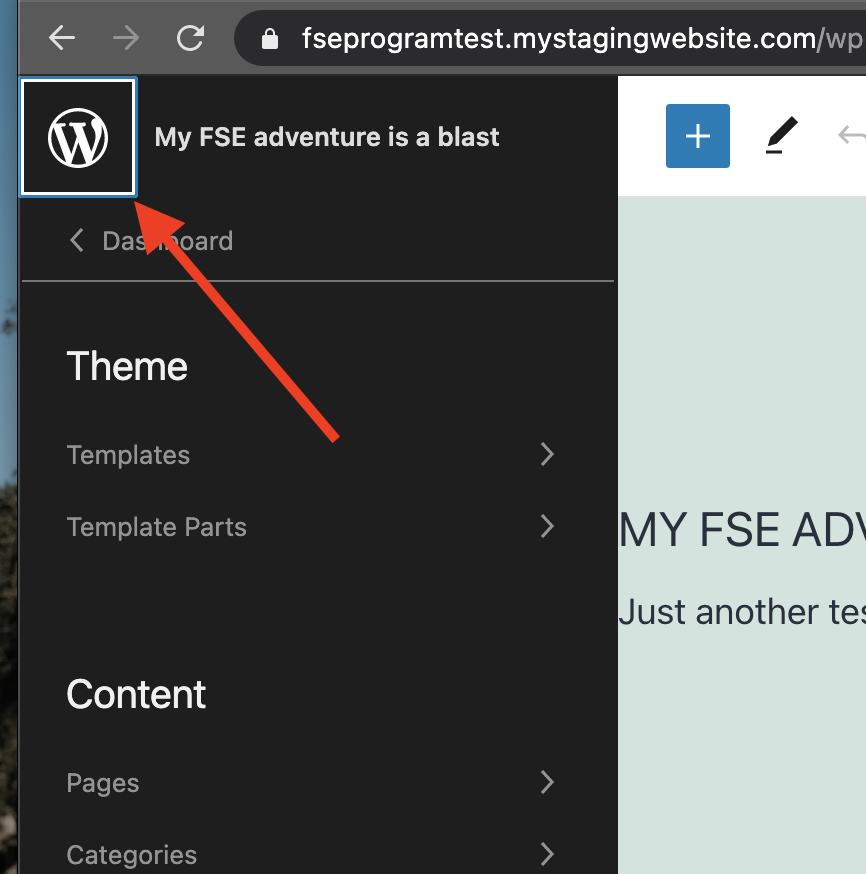
- Finally, open the Navigation Toggle > Dashboard to view your wp-admin dashboard. Head to Page > All Pages and publish any that need to be.
- View your site and check to make sure that what you created matches what you see there.
- Share your experience in the comments below or in GitHub directly. You’re welcome to run through the experience multiple times to capture any additional feedback!
Testing Video:
This video doesn’t go into great detail in terms of customizing the colors but does walk through each step to get a sense of the major actions to take. Feel free to take the test further as you see fit!
What to notice:
Remember to share a screenshot of what you created if you’re up for it!
- Did the experience crash at any point?
- Did the saving experience work properly?
- Did you find any features missing while creating the header?
- What did you find particularly confusing or frustrating about the experience?
- What did you especially enjoy or appreciate about the experience?
- Did you find that what you created in the Site Editor matched what you saw on your site?
- Did it work using Keyboard only?
- Did it work using a screen reader?
Leave Feedback by April 12th, 2021 (previously April 8th)
Please leave feedback in the comments of this post. If you’d prefer, you’re always welcome to create issues in this GitHub repo directly for Gutenberg and in this GitHub repo for TT1 Blocks. If you leave feedback in GitHub, please do still comment below with the link. If you see that someone else has already reported a problem, please still note your experience with it below, as it’ll help give those working on this experience more well-rounded insight into what to improve.
#core-editor, #fse-outreach-program, #fse-testing-call, #usability-testing