This post is the fifteenth call for testing as part of the Full Site Editing Outreach Program. For more information about this experimental program, please review this FAQ for helpful details. To properly join the fun, please head to #fse-outreach-experiment in Make Slack for future testing announcements, helpful posts, and more will be shared there.
Overview
This call for testing focuses on what, on the surface, feels like a common task you might have done in the Site Editor: creating a new template and applying it to some posts. As you go through the tasks though, the way the following features align will hopefully surprise you and show you a greater layer of depth in the site editing experience.
More template options
Expanding what templates can be created from the Site Editor continues to be a high priority with a number of new options to explore. This test in particular will focus on the general Category template but stay tuned for Gutenberg 13.7 (the next version) when you’ll be able to create a template for a specific category. This means you could have a different template for all your posts categorized as “WordPress” for example! Depending on when you participate in this call for testing, that means you might have access to this new option to explore too.
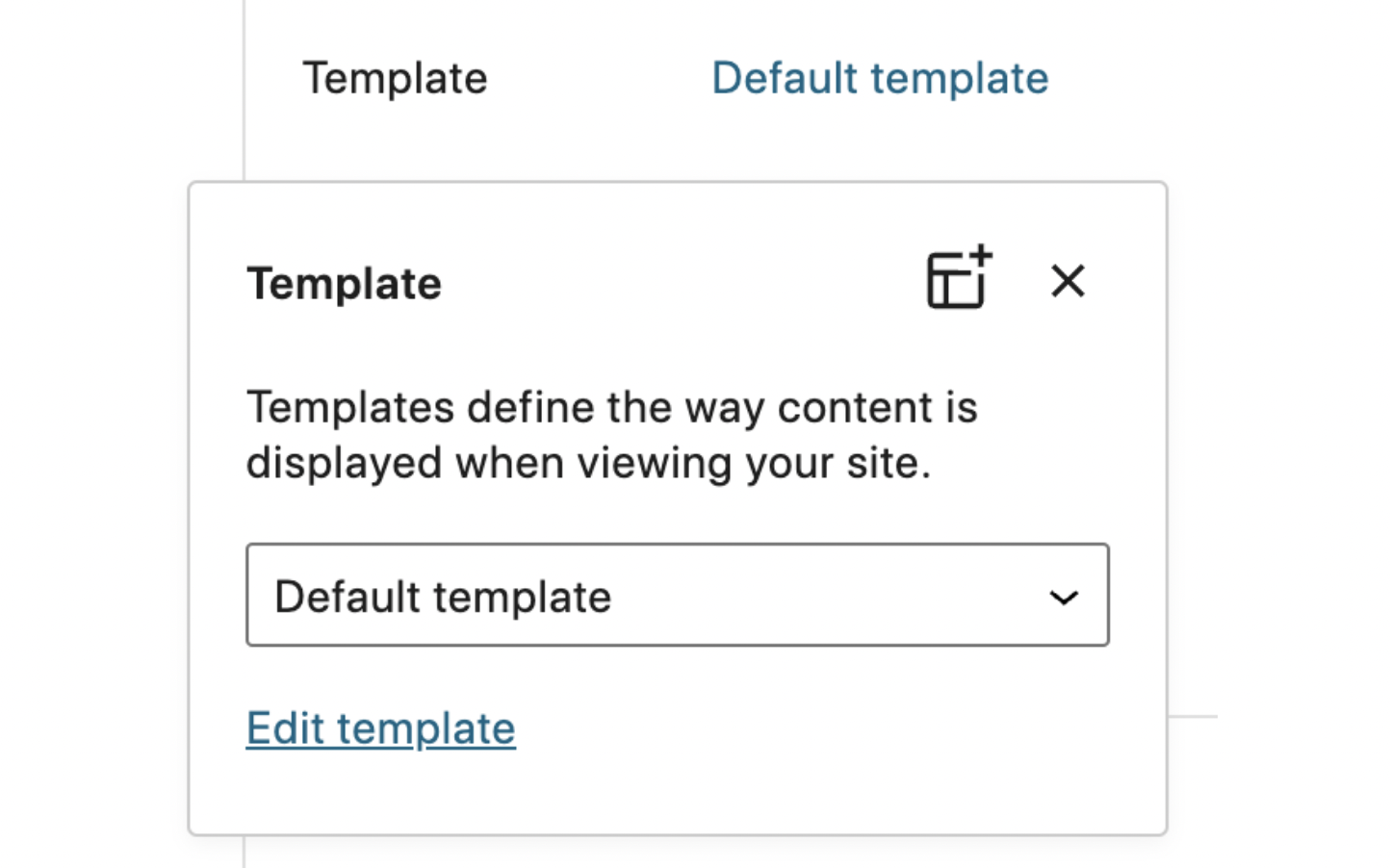
New template picker design
Gutenberg 13.6 offers a new, streamlined template picker design that helps both conserve space and more naturally align with other post details:
More descriptive layout controls
If you’ve been left confused by every mention of “Inherit Default Layout”, the recent update to the description of this feature will be welcomed.
(Semi locked) Starter patterns when creating a new post
Both the patterns and the fact that various blocks are locked are all part of some of the features one can use to curate the editor experience. Even though these might not be incorporated out of the box with a new WordPress site, they are still important to test so that those who do rely on them have a great experience. In this case, the test goes through the new starter patterns that were first introduced in WordPress 6.0 with pages and are now available for any post type with Gutenberg 13.6. As a bonus, a few blocks are locked in each pattern to help explore more granular ways to control the experience.
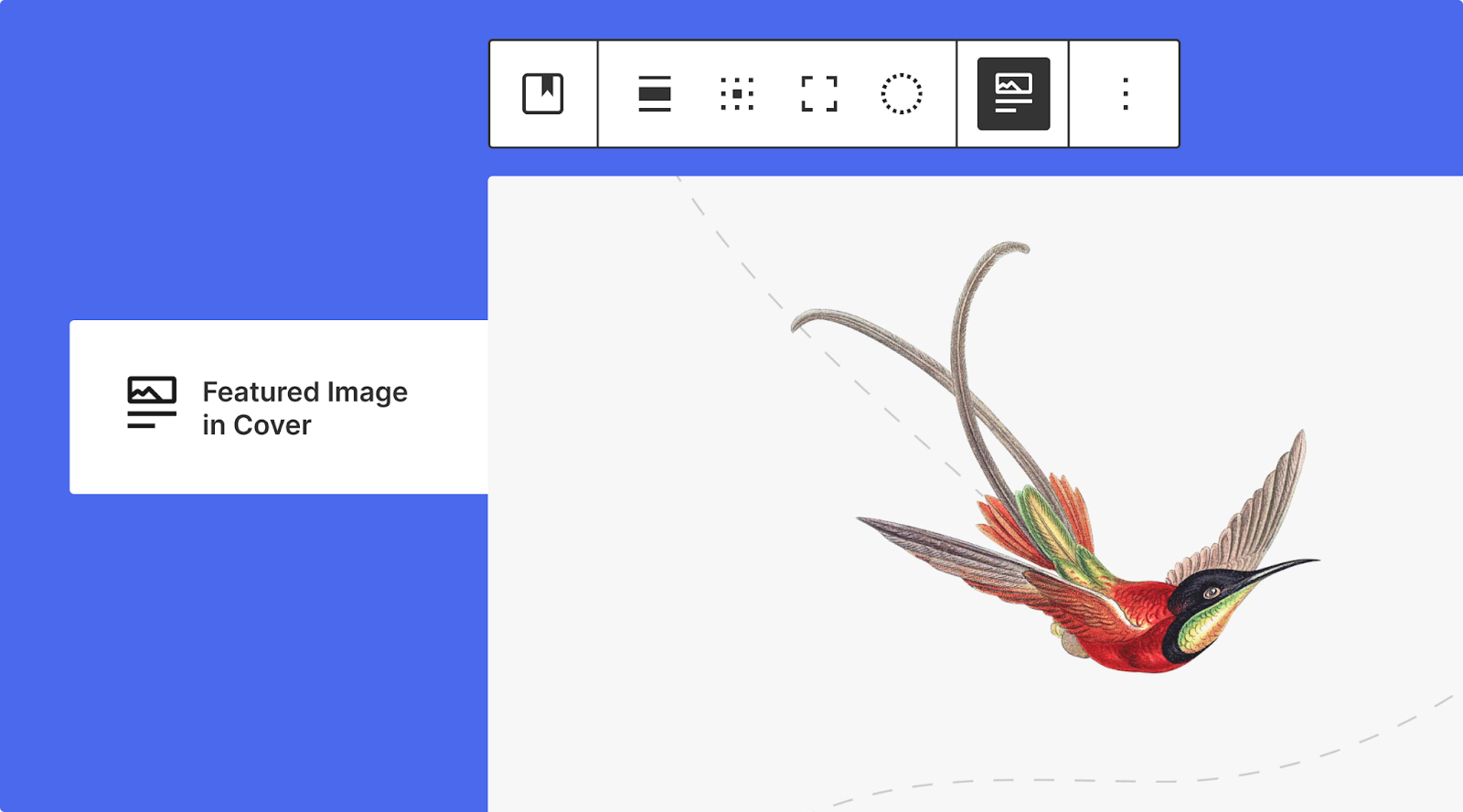
Using a featured image in a Cover block
Another feature from WordPress 6.0 is making an appearance in this test, alongside some subsequent improvements to the placeholder when the featured image is in use and the easier discoverability of the option itself in the media replace option.
Testing Instructions
Helpful Hint: As you go through this test, you might find the List View helpful while navigating between content.
Note on InstaWP
The folks behind InstaWP have granted the outreach program an account that we can use for these calls for testing. This means if you want to skip setting up your own test site and instead use a temporary one, you can do so. When you set up a site with InstaWP, no email addresses will be collected which means you’ll need to save the link to access the site again. Big thank you to the InstaWP team!
Launch test site or setup test environment
To use a prebuilt test site:
- Open this link only once: https://app.instawp.io/launch?t=fse-fifteenth-call-for-testing Please do not repeatedly open this link as it creates a new site each time and there’s a limit of 50 sites that can be created.
- This will launch a site for you to use for up to 24 hours. Select “Access Now” to log in to the wp-admin dashboard.
- Save the link to your site so you can access it again during the test.
- Navigate to Appearance > Editor (beta). This will automatically open the site editor to the template powering your homepage.
To set up your own test site:
- Have a test site using the latest version of WordPress. It’s important this is not a production/live site.
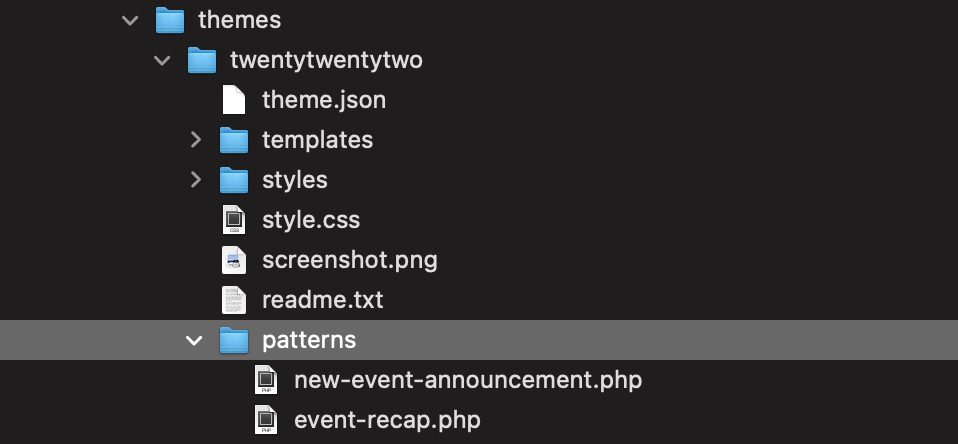
- Install and activate the Twenty Twenty-Two theme by going to Appearances > Themes. Add a patterns folder to your Twenty Twenty-Two theme and add these two files: new-event-announcement.php and event-recap.php. Here’s more information about this functionality.
- Install and activate the Gutenberg plugin from Plugins > Add New. If you already have it installed, make sure you are using at least Gutenberg 13.6.
- From there, navigate to Appearance > Editor (beta). This will automatically open the site editor to the template powering your homepage.
Create a category template
- Once there, open the W menu > Templates. This will open up the template list. If you have a set site icon, you will see that instead of the big W.
- Choose “Add New” > Select “Category”. This will open up a new blank template.
- As you’d like, add any Header or Footer template parts. You can do this by searching directly for “Header” or “Footer” or by adding the template part block and selecting the one you’d like.
- Add a Query Loop block and select whichever design option you’d like.
- While selecting the Query Loop block, open the block settings sidebar and ensure the option “Inherit query from template” has been selected. This will ensure that the right posts appear.
- Customize the template further as you see fit keeping in mind that this template will be used when viewing a specific category of posts. When done, hit save to publish the new template.
Create two new posts to explore patterns
- Open the W menu (if you have a set site icon, you will see that instead) and select “Dashboard” to return to your wp-admin dashboard.
- Under Posts > Add New to create a new post.
- Select the “New Event Announcement” pattern and fill in details as you’d like. For inspiration, in your post lists, there’s an example post titled “WordCamp Museum” using this pattern. Note that a few blocks are locked! Explore what this experience is like (lock more blocks, unlock current ones, etc).
- Set a featured image and notice how it also appears in the Cover block of the pattern. Feel free to customize this further.
- Before publishing, open the post settings, assign the category “Events”, and under “Template” feel free to select a different template with the new pop over interface.
- Return to the dashboard and create another new post.
- Select the “Event Recap” pattern and fill in details as you’d like once more. For inspiration, in your post lists, there’s an example post titled “WordCamp Museum Recap” using this pattern. Note that a few blocks are locked! Explore what this experience is like.
- Under the “Attendees” heading, select the Group block that contains the various names. Open the sidebar settings and, under “Layout”, explore the “Inner blocks use full width” option and customize to your liking (change colors, font size, dimensions, etc).
- Before publishing, open the post settings, assign the category “Events”, and under “Template” feel free to select a different template with the new pop over interface.
View your category template
- Once done, view the “Event” category to see your template and posts on full display. You can find the category template by going to
yoursiteurl.com/category/events/
What to notice:
Remember to share a screenshot of what you created if you’re up for it!
- Did the experience crash at any point?
- Did the saving experience work properly?
- What did you find particularly confusing or frustrating about the experience?
- What did you especially enjoy or appreciate about the experience?
- What would have made this experience easier?
- Did you find that what you created matched what you saw on your site?
- Did it work using Keyboard only?
- Did it work using a screen reader?