Purpose
To provide in Learn WordPress an end of the month overview of the projects the training team have completed and any updates of projects that are still being worked on. Example Newsletter
Responsibility
The team reps are responsible for creating the newsletter post on a rotating schedule.
Timeline
- Created at the end of each month.
- Publish by the 5th of the next month.
Process
- As a team rep you will have access to the Learn WordPress dashboard.
- Open Dashboard>Posts>Add New Posts
- Click on plus sign (+) in the upper left-hand corner.
- Click on Patterns.
- Type ‘newsletter’ in the search bar.
- Click on the Newsletter not synced pattern.
- Add title: Learn WordPress Newsletter – {MONTH} {YEAR}
- Update Month and Year. Save draft
- Set featured image
- Click on featured image placeholder
- This will open window for Media Library: Select or Upload media
- In search type newsletter. There are 4 options. Pick one.
- Click the Select button in the bottom right hand corner.
- Click Save draft.
Adding information
Go through each of the sections and add the relevant published materials.
For each title use sentence-case with proper nouns capitalized. Examples:
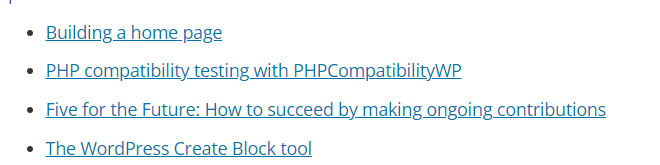
- Link each title to the proper URL. Make sure all URL links work.
- For videos, link to the video on the WordPress YouTube channel first. If there is not a link then use the wordpress.tv link.
Post settings
Open the right side settings bar to set the settings for the post.
- Categories
- Click on- News
- Click off any other items that have a check mark.

Publish
- Click Publish.
- Share link in training team weekly global meeting.